Introduction
Imagine running out of mobile data when you need your phone the most. You cannot open your favourite websites, stream videos, or send messages through your usual apps. For many people, this is when an Android phone suddenly feels almost useless.
But here is something you might not realize: your Android phone can do several useful things without an internet connection. Some of these features are already built into your device, while others require you to download an app or prepare certain files before going offline.
Whether you want to save mobile data, travel without an internet connection, or make better use of your phone when network coverage is poor, knowing these features can make a real difference.
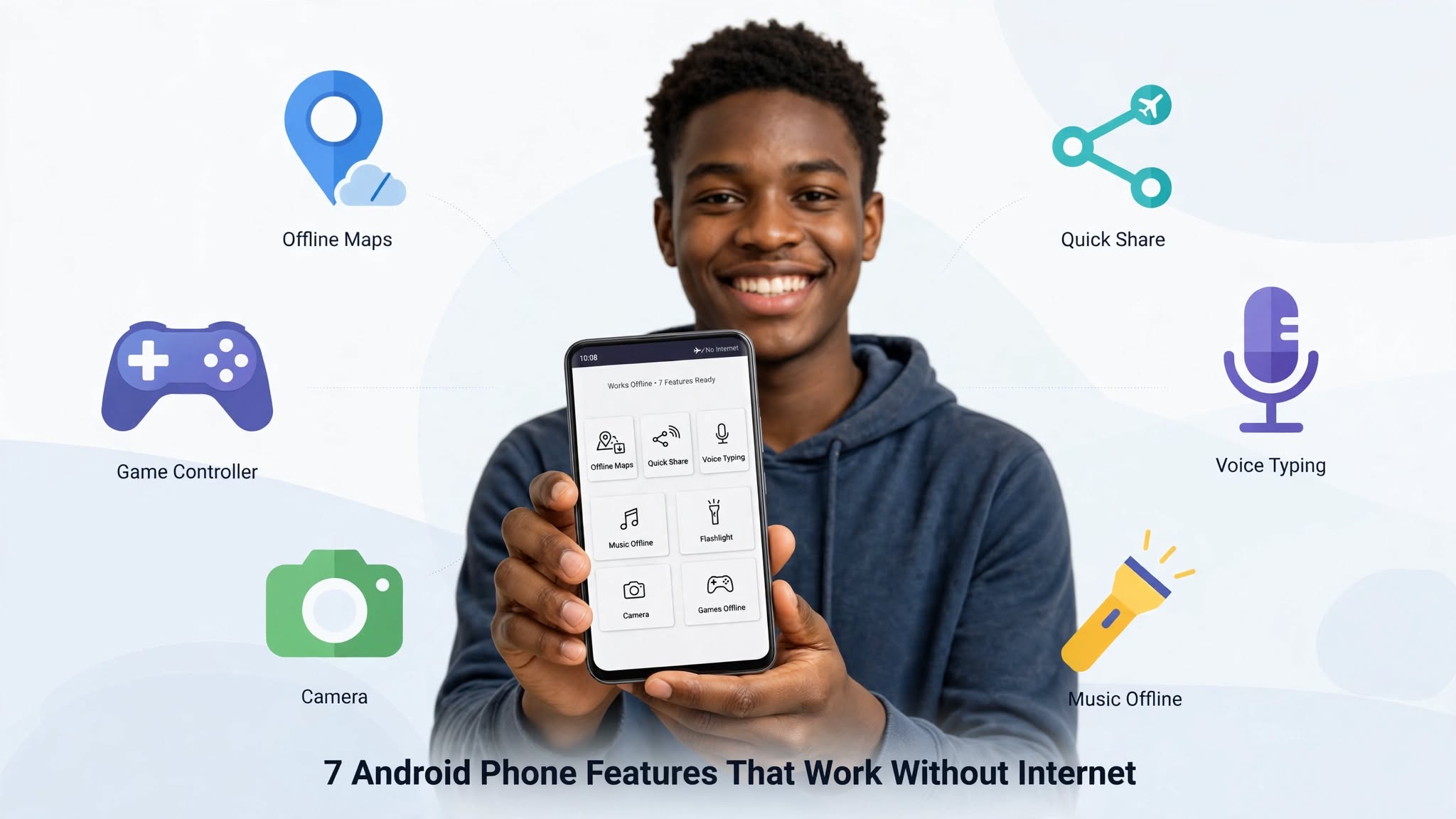
Let’s look at seven Android phone features that work without internet access and how you can use them.
👉Best Budget Smartphones Worth Buying
1. Share Files Without Mobile Data Using Quick Share
Did you know you can send photos, videos, documents, and other files to compatible nearby devices without using mobile data?
Android’s Quick Share feature makes this possible. Depending on your device and the receiving device, it can use Bluetooth and a direct Wi-Fi connection to transfer files locally.
For example, imagine taking several pictures at a family gathering and wanting to send them to your friend’s Android phone. You do not need to upload the pictures to social media or use your mobile data to send them through an online service.
How to use Quick Share
1. Open your phone’s Settings or Quick Settings panel.
2. Find Quick Share. You may need to swipe through the available shortcuts.
3. Select the photos, videos, or documents you want to share.
4. Tap Share and choose Quick Share.
5. Select the nearby device and accept the transfer on the receiving phone.
Bluetooth and Wi-Fi may need to be enabled, depending on your device. However, an internet connection is generally not required for a local transfer.
Why it is useful: Quick Share is a convenient way to transfer large files between compatible nearby devices without spending money on mobile data.
2. Use Google Maps Without an Internet Connection
Many people assume that Google Maps becomes useless once their internet connection disappears. That is not entirely true.
Google Maps allows you to download maps of selected areas in advance. Once downloaded, these maps can help you navigate when your phone is offline.
This can be particularly useful when travelling to unfamiliar places, visiting rural communities, or trying to save data while moving around.
How to download offline maps
1. Connect your phone to Wi-Fi.
2. Open Google Maps.
3. Tap your profile picture.
4. Select Offline maps.
5. Tap Select your own map.
6. Choose the area you want to save and download it.
After downloading the map, you can access it without internet access.
However, there is an important limitation. Offline navigation mainly supports driving routes in downloaded areas. Live traffic updates, alternative routes based on current conditions, and some other features require an internet connection.
Why it is useful: Downloading maps before travelling can help you find your way even when mobile network coverage is unreliable.
3. Type With Your Voice Without Internet
Have you ever wanted to type a long message but felt too tired to press every letter on your keyboard?
Your Android phone may allow you to dictate text using your voice, even without an internet connection.
Google’s Gboard keyboard supports offline voice typing on certain devices and languages when the required speech recognition files are available. Availability depends on your phone, keyboard version, language, and settings.
How to check whether offline voice typing works
1. Open an app where you can type, such as your Notes app.
2. Tap the text field to display your keyboard.
3. Look for the microphone icon.
4. If available, open Gboard’s settings and look for voice typing options.
5. Check whether offline speech recognition is supported for your language and device.
You may need to download the relevant language files while connected to the internet.
Once configured, try dictating a short sentence with mobile data and Wi-Fi turned off. This will help you confirm whether your setup supports offline voice typing.
Keep in mind that some speech recognition features still require an internet connection.
Why it is useful: Offline voice typing can help you write notes, draft messages, and record ideas when you cannot get online.
4. Listen to Music Without Internet
You do not need an active internet connection every time you want to enjoy music on your Android phone.
If you have audio files saved on your device, you can listen to them offline using a compatible music player.
These files might include MP3 songs, downloaded audio lessons, recorded lectures, or other music files you legally obtained.
How to listen to music offline
1. Save your audio files to your phone’s internal storage or memory card.
2. Open a compatible music player.
3. Allow the app to access your audio files if requested.
4. Select a song and start playing.
You can also use music streaming services that support offline downloads, but you generally need to download the music beforehand. Some services require a paid subscription, and downloaded tracks may remain available only while your subscription and other service requirements are satisfied.
Why it is useful: Keeping some music or audio lessons on your phone gives you something to listen to during long journeys, power outages, or periods without network coverage.
5. Use Your Phone’s Flashlight and Camera
This might sound obvious, but some people forget how many everyday tasks their phones can perform without internet access.
Your Android phone’s flashlight and basic camera functions generally work offline.
Need light during a power outage? You can switch on your flashlight directly from the Quick Settings panel.
Want to take a picture of an important document, a receipt, or something you need to remember? You can usually open your camera and take the picture without connecting to the internet.
Other things you can do offline
Depending on your device and installed apps, you may also be able to:
- Record videos.
- Take screenshots.
- Record audio.
- View photographs saved in your gallery.
- Read downloaded PDF documents.
- Open locally stored files.
Some camera modes, cloud backups, online editing tools, and AI-powered features may require internet access.
Why it is useful: These built-in tools can help you handle everyday situations without worrying about your data balance.
6. Play Offline Games
Not every mobile game requires an internet connection.
Some Android games can be played entirely offline, allowing you to enjoy yourself while waiting for an appointment, travelling, or relaxing at home.
Examples of games that may offer offline play include certain puzzle games, chess games, word games, and single-player arcade games.
However, not every game advertised as a mobile game works offline. Some require an internet connection for account verification, advertising, downloading game content, or accessing particular features.
How to prepare your phone for offline gaming
Before you leave an area with reliable internet:
1. Open the game you want to play.
2. Complete any necessary downloads.
3. Sign in if the game requires it.
4. Check whether the main game mode works without internet access.
5. Test it by switching on Airplane Mode.
This simple check can save you from discovering that your favourite game needs a connection when you are already offline.
Why it is useful: Offline games provide entertainment without using mobile data or relying on a stable network.
7. Use Emergency Features Even When You Have No Data
Your Android phone has several safety-related features that do not depend on an ordinary mobile data connection.
For example, many phones allow you to access emergency information from the lock screen, use the flashlight, and trigger supported emergency features without opening an internet-dependent app.
Depending on your device and settings, you may also be able to access emergency calling features.
However, having no mobile data is not the same as having no cellular service. Emergency calls generally require a compatible cellular network to be available, although local rules and supported satellite features can affect what is possible.
Do not assume that an emergency call will connect if your phone has no network coverage whatsoever.
How to prepare your phone
- Check your phone’s Emergency SOS settings.
- Add emergency contacts where supported.
- Set up emergency information that can be accessed from the lock screen.
- Learn how your particular device activates its emergency features.
- Keep your phone charged whenever possible.
Some emergency functions depend on your location, device model, software version, and available network services.
Why it is useful: Preparing these features in advance can help you access important information and respond more quickly during an emergency.
Frequently Asked Questions
Can I use my Android phone without a SIM card?
Yes. Many Android functions work without a SIM card, including taking pictures, using the flashlight, playing locally stored music, reading downloaded documents, and playing compatible offline games.
Some functions, including ordinary cellular calls and SMS messages, require appropriate mobile network service.
Does Airplane Mode stop every feature on my Android phone?
No. Airplane Mode disables cellular connections and may also disable Wi-Fi and Bluetooth initially. You can often turn Wi-Fi or Bluetooth back on manually while Airplane Mode remains active.
Many offline features continue working normally.
Can I use WhatsApp without internet?
You can read previously loaded conversations and access some locally stored information without an internet connection. However, sending and receiving ordinary WhatsApp messages generally requires connectivity.
WhatsApp also supports certain offline actions, such as preparing messages to send when connectivity returns, depending on the app’s behaviour and circumstances.
How can I save mobile data on Android?
Download maps, music, documents, and offline game content while connected to Wi-Fi. You can also enable Data Saver, restrict background data for selected apps, and download videos for offline viewing where the relevant service permits it.
👉7 Hidden Android Features That Can Save Your Mobile Data, Battery, and Storage
Final Thoughts
Your Android phone can do much more than browse websites, stream videos, and run social media apps.
From sharing files with Quick Share to navigating with downloaded maps, listening to saved music, and using your camera, several useful features remain available without an internet connection.
The trick is knowing which features work offline and preparing your phone before you need them.
Take a few minutes today to download an offline map, save some useful files, and test your favourite offline apps. The next time your data finishes unexpectedly, you may discover that your phone is still far more useful than you thought.