Have you ever tried to open a website, watch a YouTube video, TikTok, or download an important file on your smartphone, only to find yourself waiting longer than expected? Slow internet can be frustrating, especially when you need to get something done quickly.
The good news is that you may not need a new smartphone or a more expensive data plan to solve the problem. Sometimes, a few simple changes to your network settings, phone configuration, or browsing habits can improve your internet experience.
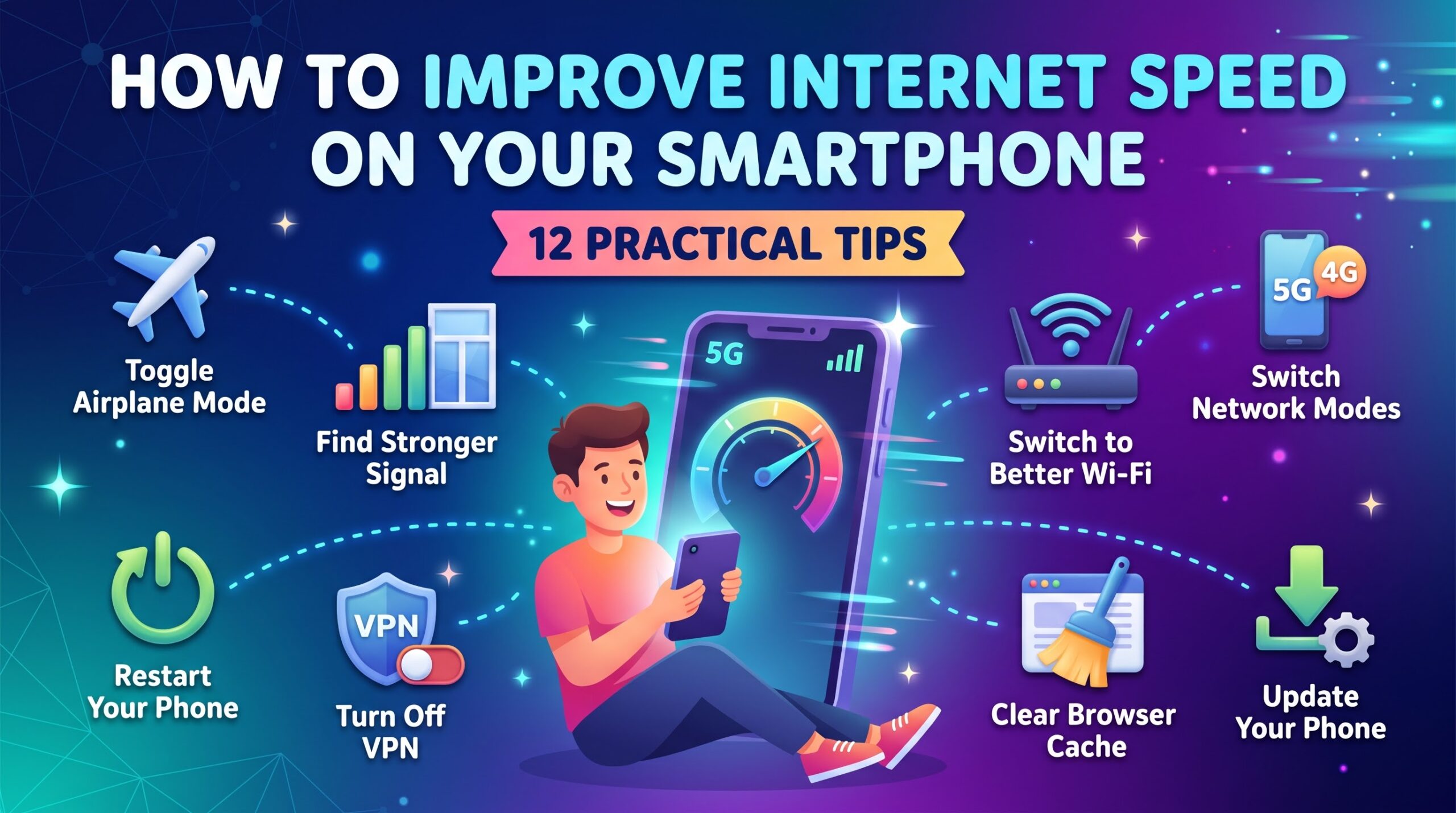
If you want to know how to improve internet speed on your smartphone, this guide explains 12 practical methods you can try on Android and iPhone devices. You will also learn how to identify what is causing your connection to slow down.

👉7 Hidden Android Features That Can Save Your Mobile Data, Battery, and Storage
1. Turn Airplane Mode On and Off
One of the quickest ways to troubleshoot a slow mobile internet connection is to switch Airplane Mode on and then off.
Your smartphone constantly communicates with nearby mobile network towers. Occasionally, it may remain connected to a weak signal even when a better connection is available.
Turning Airplane Mode on temporarily disconnects your wireless connections. When you turn it off, your phone searches for available mobile networks again.
How to do it:
1. Swipe down from the top of your screen to open the Quick Settings panel on Android, or open Control Center on an iPhone.
2. Tap the Airplane Mode icon.
3. Wait approximately 10–15 seconds.
4. Turn Airplane Mode off.
5. Wait for your mobile network to reconnect and test your internet speed.
This method may help refresh your connection, although it will not fix network congestion, poor coverage, or a faulty SIM card.
2. Move to a Location With a Stronger Network Signal
Your location can have a significant effect on mobile internet speed.
If you are inside a building with thick walls, in a basement, or in an area far from mobile network towers, your phone may receive a weak signal. This can make websites load slowly and cause videos to buffer.
Try moving closer to a window or going outside to an open area.
If you are in a crowded place, your connection may also slow down because many people are using the same mobile network.
Pay attention to your signal bars, but remember that they do not directly measure internet speed. A phone can show a strong signal and still experience slow internet because of network congestion.
Practical tip: If your internet is faster outdoors than indoors, weak indoor coverage may be contributing to the problem.
3. Switch Between 4G, 5G, and Other Available Network Modes
Your smartphone may support different mobile network technologies, including 3G, 4G LTE, and 5G.
When available and properly supported by your carrier, 4G or 5G can provide faster internet than older network technologies. However, the best option depends on your location, network coverage, device compatibility, and mobile subscription.
If your phone keeps switching between network types, your connection may become unstable.
On many Android phones, you can check your preferred network mode by following these steps:
1. Open Settings.
2. Select SIM cards and mobile networks, Connections, or a similarly named option.
3. Choose your SIM card.
4. Find Preferred network type.
5. Select an available option such as 4G/LTE or 5G, if supported.
The exact menu names vary by phone manufacturer.
On an iPhone, open Settings, select Mobile Service or Cellular, and look for Mobile Data Options and Voice & Data.
If 5G coverage is weak in your area, switching to 4G LTE may provide a more stable connection. Test both options when available and keep the one that performs better.
4. Restart Your Smartphone
Restarting your phone can resolve temporary software problems that affect network connectivity.
Your smartphone runs many background processes, and occasional software glitches can interfere with normal performance. A restart closes active processes and allows the device to establish its connections again.
To restart your phone, press and hold the appropriate power button combination, select Restart if available, and wait for the device to boot up.
After restarting, reconnect to your mobile network or Wi-Fi and test your internet speed.
A restart will not make a slow network tower faster, but it is a useful troubleshooting step when your connection suddenly becomes unusually slow.
5. Close Apps That Consume Too Much Data
Some smartphone applications use internet data even when you are not actively using them.
For example, cloud storage apps may upload files, social media apps may preload videos, and applications may download updates in the background.
These activities can compete with the website, video, or download you are trying to use.
On Android, you can check individual apps under Settings and then Apps or Mobile Data Usage, depending on your device.
On an iPhone, open Settings and select Mobile Service or Cellular to review how much mobile data individual apps have used.
If an application consumes more data than expected, consider restricting its background data usage or disabling background activity where appropriate.
However, do not assume that closing every recent app will improve internet speed. Many apps do not use significant data while idle, and constantly force-closing them can be counterproductive.
6. Clear Your Browser’s Cache
If websites load slowly in one browser but other applications work normally, the problem may be related to your browser.
Browsers store temporary files, known as cached data, to help websites load more efficiently. Over time, stored data or corrupted website information can sometimes contribute to browsing problems.
Clearing your browser’s cache may help resolve certain loading issues.
For Google Chrome on Android:
1. Open Chrome.
2. Tap the three-dot menu.
3. Select Delete browsing data.
4. Choose a suitable time range.
5. Select Cached images and files.
6. Confirm the action.
Menu labels may differ slightly between versions.
Keep in mind that clearing the cache does not increase the speed of your mobile network itself. It is mainly useful when the problem affects browsing or particular websites.
You should also be careful when selecting other browsing data options because clearing cookies and site data may sign you out of websites.
7. Turn Off VPNs When You Do Not Need Them
A Virtual Private Network (VPN) routes your internet traffic through another server before it reaches its destination.
Depending on the VPN provider, server location, encryption, and network conditions, this extra routing can reduce your connection speed.
If you use a VPN and notice unusually slow internet, temporarily disconnect it and test your connection again.
If your speed improves, try connecting to a closer VPN server or choosing a less congested server.
However, a VPN is not always the cause of slow internet. Some VPN services can provide better routing in certain situations, and disconnecting one may reduce your privacy protection.
Only turn it off when doing so is appropriate for your security and privacy needs.
8. Switch to a Better Wi-Fi Network
If you are using Wi-Fi, your internet speed depends on several factors, including your router, internet service provider, signal strength, and the number of connected devices.
Start by moving closer to the router. Walls, furniture, and other obstacles can weaken the Wi-Fi signal.
You can also disconnect devices that are downloading large files or streaming high-resolution videos if they are using much of your available bandwidth.
If you control the router, restarting it may help resolve temporary connection problems.
Another option is to test both Wi-Fi frequency bands, if your router supports them.
- 2.4 GHz Wi-Fi: Often provides better coverage over longer distances but may experience more interference.
- 5 GHz Wi-Fi: Can provide higher speeds over shorter distances but generally has less range through obstacles.
The best choice depends on the distance between your phone and router.
If other devices also have slow internet on the same Wi-Fi network, the issue may be with the router or internet service rather than your smartphone.
9. Disable Data Saver or Low Data Mode When Appropriate
Data-saving features help reduce mobile data consumption, but they can affect how certain applications operate.
On Android, Data Saver can restrict background mobile data for many applications. On iPhones, Low Data Mode can reduce background network activity and automatic updates.
These features do not necessarily make your internet connection slower. However, they may delay background syncing, downloads, or other activities.
If an application is not updating properly, check whether a data-saving feature is enabled.
On Android, open Settings and look for Network & Internet or Connections, followed by Data Saver.
On an iPhone, open Settings, select Mobile Service or Cellular, choose your data options, and check whether Low Data Mode is enabled. Wi-Fi networks may have a separate Low Data Mode setting.
Disable these features only when necessary, particularly if your mobile data allowance is limited.
10. Update Your Smartphone’s Software
Software updates can fix bugs, improve device stability, and sometimes resolve network-related problems.
If your phone is running an outdated operating system, certain connectivity issues may be caused by software problems.
To check for updates on Android, open Settings and look for Software Update or System Update.
On an iPhone, open Settings, select General, and tap Software Update.
Install updates from official system settings, preferably while connected to reliable Wi-Fi and with sufficient battery power.
Updates do not guarantee faster internet, but keeping your device software current can help prevent problems associated with outdated software.
11. Check Your Data Balance and Network Provider
Sometimes, your smartphone is working perfectly, but your mobile network provider is the reason your internet is slow.
Depending on your carrier and subscription, your speed may be affected by exhausted data allowances, fair-use restrictions, network congestion, or temporary service problems.
If you use a Nigerian network such as MTN, Airtel, Glo, or 9mobile, check your data balance through your provider’s official app or another official account channel.
Also, consider whether the problem occurs at a particular time.
For example, if your internet is fast early in the morning but becomes slow in the evening, network congestion may be a factor.
Try the following steps:
- Confirm that your data bundle is still active.
- Check whether your plan has any speed restrictions.
- Test your connection at different times of the day.
- Ask whether other people using the same network nearby have similar problems.
- Contact your provider if the problem continues.
If many users in your area experience the same slowdown, changing settings on your phone may not solve the underlying problem.
12. Reset Your Network Settings as a Last Resort
If you have tried the previous methods and your internet connection remains unstable, resetting your network settings may help.
This action restores network-related settings to their defaults. It can resolve certain problems involving Wi-Fi, mobile connections, and Bluetooth.
However, it should not be your first option because it may remove saved Wi-Fi networks, passwords, and other network configurations. The exact effects depend on your device.
On many Android phones, you can find the option under Settings, System or General Management, Reset, and then Reset Network Settings.
On an iPhone, open Settings, select General, then Transfer or Reset iPhone, followed by Reset and Reset Network Settings.
Read the confirmation screen carefully before proceeding.
After the reset, reconnect to your Wi-Fi network or mobile data and check whether the problem has improved.
If the connection remains slow, contact your network provider or device manufacturer for further assistance.
👉7 Android Phone Features That Work Without Internet but Most Users Don’t Know About
How to Check Your Smartphone’s Internet Speed
Before and after making changes, it helps to measure your connection speed.
You can use the official website of “Speedtest by Ookla” (https://www.speedtest.net/) to test your internet connection.
Pay attention to three important measurements:
Download speed: This indicates how quickly your phone receives data. It affects activities such as downloading files, streaming videos, and loading many websites.
Upload speed: This measures how quickly your phone sends data. It matters when uploading videos, sending large files, or making video calls.
Ping or latency: This measures the time it takes for data to travel between your device and a server. Lower latency generally helps with online gaming, video calls, and responsive browsing.
For a fair comparison, run tests in the same location and under similar conditions. Test mobile data separately from Wi-Fi, and repeat the test if the results seem unusual.
Remember that speed-test results can vary depending on the test server, time of day, and network congestion.
Frequently Asked Questions
Why is my phone’s internet so slow even with full signal bars?
Full signal bars do not guarantee fast internet. Your network may be congested, your data plan may have speed restrictions, or the problem may involve your carrier or device. Try testing your connection at a different time or location.
Does clearing the cache make internet faster?
Clearing cached files may fix certain browser problems, especially when websites load incorrectly. However, it does not increase your mobile network’s actual speed.
Can a phone’s age affect internet speed?
Yes, potentially. Older phones may support fewer network technologies, have less capable Wi-Fi hardware, or run outdated software. However, an older phone can still provide good internet performance when its hardware, software, and network conditions are suitable.
Does 5G always provide faster internet than 4G?
No. Although 5G can offer higher speeds, performance depends on coverage, signal quality, network congestion, device compatibility, and your carrier’s service. A strong 4G connection can outperform a weak 5G connection.
What is the quickest way to improve internet speed on my phone?
Start by turning Airplane Mode on and off, moving to a location with a stronger signal, or switching between available network modes. If you use Wi-Fi, try moving closer to the router. These steps are easy to test and may resolve common connection problems.
Final Thoughts
Learning how to improve internet speed on your smartphone does not have to be complicated. In many cases, the solution involves identifying the actual cause of the slowdown rather than changing every setting on your device.
Start with simple steps such as refreshing your connection, checking your signal strength, restarting your phone, and reviewing your data balance. If you use Wi-Fi, examine your router and connection quality as well.
If none of these methods works, the issue may be related to your network provider, phone hardware, or local network coverage.
The most effective approach is to test your connection, make one change at a time, and compare the results. This will help you discover which solution works best for your smartphone without wasting time on unnecessary adjustments.